Development Cycle
Creating a New Project
Replace my_game with the name of the project folder to be created.
borger init my_game
cd my_game
borger dev
Loading an Existing Project
git clone https://whatever/my_game.git
cd my_game
borger setup
borger dev
Using borger dev
The dev command runs several parallel jobs:
- Automatically recompile each time you modify code
- Host a local game server
- Host a local game client web (HTTPS) server - specifically Vite, which supports hot reloading HTML, CSS, and sometimes even graphics without having to refresh the page or restart the game.
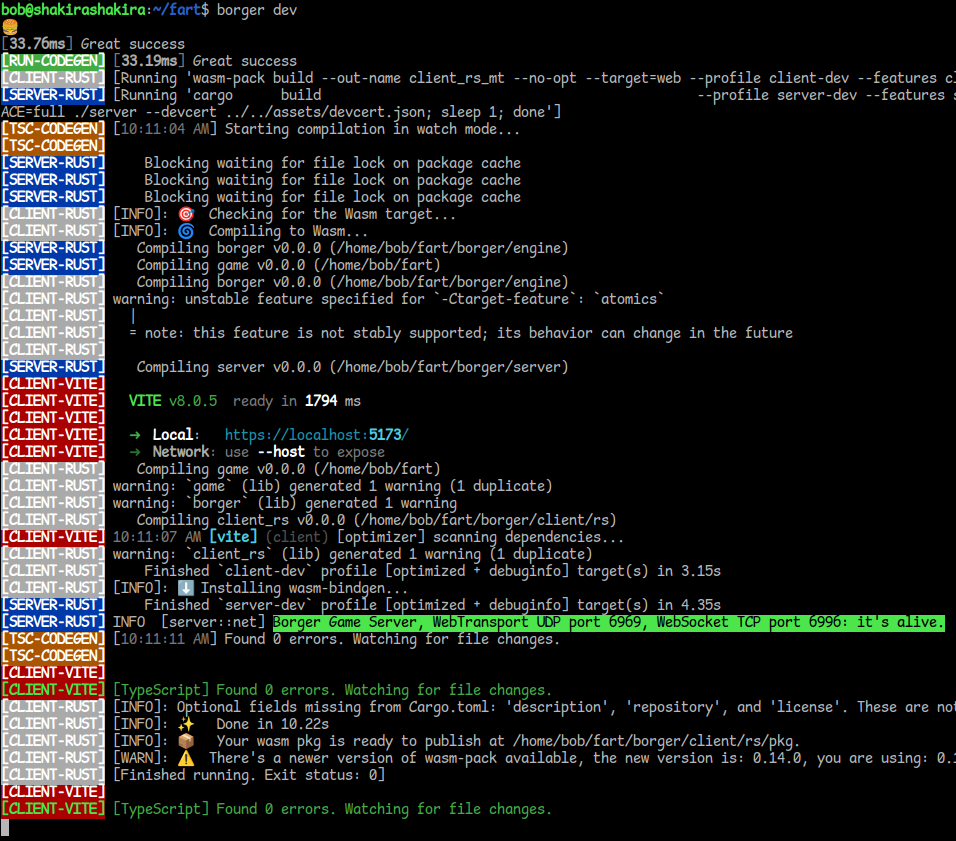
It can be tricky at first to decipher when dev is finished and it’s safe to load the game. The golden rule is:
- The most recent output of
[SERVER-RUST]isit's alive.The text is highlighted neon green and is hard to miss. - AND
- The most recent output of
[CLIENT-RUST]is[Finished running. Exit status: 0] - The server usually finishes a few seconds before the client
Here’s an example of a game that’s ready to go:
 Sometimes during compilation, you’ll see the harmless error:
Cannot find module '@borger/rs' or its corresponding type declarations.
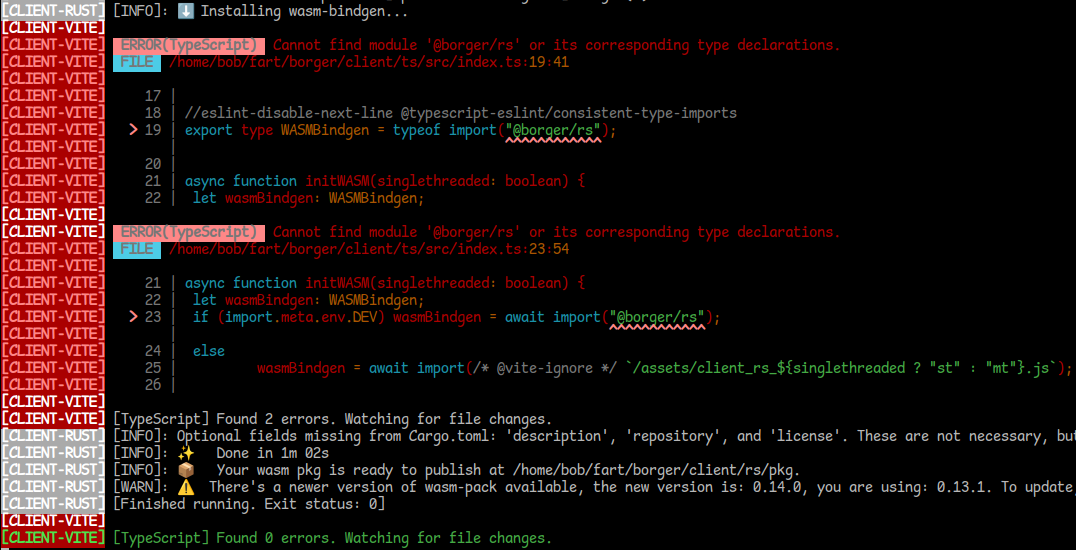 This can be safely ignored. For unknown reasons, the wasm-pack tool deletes the old WASM build before beginning, so for a few seconds during compilation, the module doesn’t exist. As seen in the screenshot (
Found 0 errors after it tries again), it corrects itself upon completion.
A few more helpful pointers:
-
Visit https://localhost:5173 in your browser to finally see the “game”! (A blank page by default)
-
If you ever forget the URL, the Vite server reminds you:
[CLIENT-VITE] ➜ Local: https://localhost:5173/ -
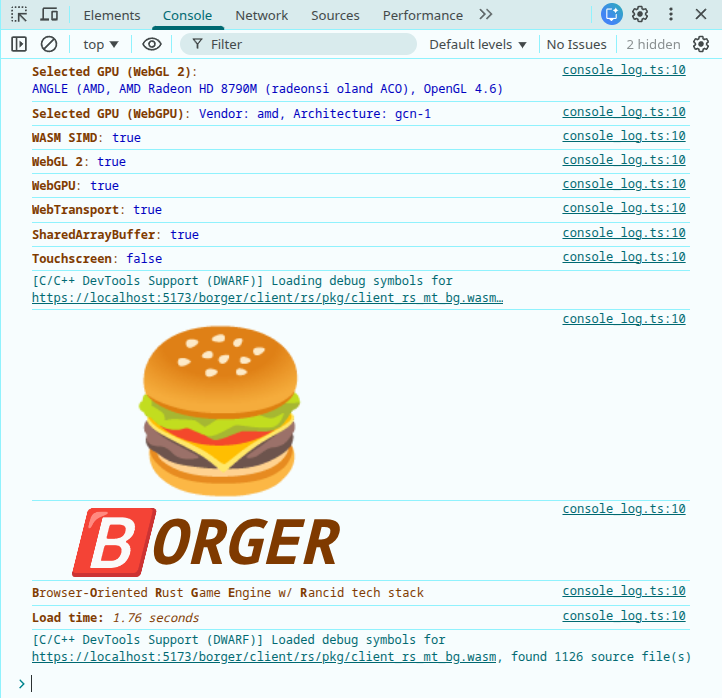
Push F12 or Ctrl+Shift+I to open the DevTools console in order to verify the engine loaded successfully
-
Push Ctrl+C in the terminal to close dev mode
-
The dev server uses something called self-signed certificates. If you’ve never worked with these before, you’ll see a terrifying error the first time you try to test the game:
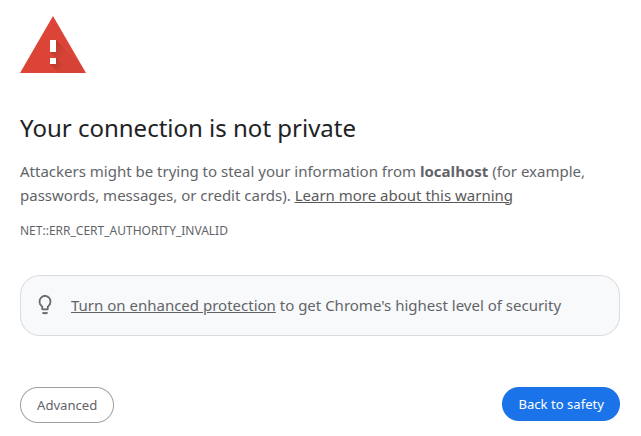
In most cases, the browser is correct to scare you, but local web development is a notable exception. Choose
Advanced -> Proceed. Essentially what’s happened is the browser is unable to verify that this is a legitimate website, because it hasn’t been deployed anywhere yet.
Project Directory Structure
/src/state.ts - Declaration of networked state/src/presentation/index.ts - Presentation logic entry point (rendering, UI, audio)/src/simulation/lib.rs - Simulation logic entry point (game logic)/src/simulation/input.rs - Input handling callbacks/index.html - Main webpage, client entry point/assets - Art files loaded by the game/borger - Source code of the framework, linked via a Git submodule/Cargo.toml - Rust library dependencies/package.json - Java/TypeScript library dependencies/rust-toolchain.toml - Change which version of Nightly Rust to compile with/vite.config.ts - Install Vite plugins (such as React) for better hot reloading support
The rest can usually be ignored.